This is a continuation of our XHTML/CSS table tutorials. In this tutorial we will be using the same table as before, but I will show how to have the rows alternate in color. To achieve this we will be using CSS classes.
We are going to start with the table from the “Styling Tables with CSS Tutorials”.
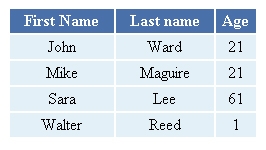
Here is the full source code for that table.
<html>

<head>

<title>Styling Tables with CSS</title>

<style type="text/css">
<!--
table{
    border-spacing: 0px;
    border-collapse: collapse;
    width: 250px;
}
th {
    text-align: center;
    font-weight: bold;
    padding: 2px;
    border: 2px solid #FFFFFF;
    background: #4a70aa;
    color: #FFFFFF;
}
td {
    text-align: center;
    padding: 2px;
    border: 2px solid #FFFFFF;
    background: #e3f0f7;
}

-->
</style>


</head>

<table>

  <tr>

  <th>First Name</th>
  <th>Last name</th>
  <th>Age</th>

  </tr>

  <tr>

    <td>John</td>
    <td>Ward</td>
    <td>21</td>

  </tr>

  <tr>

    <td>Mike</td>
    <td>Maguire</td>
    <td>21</td>

  </tr>

  <tr>

    <td>Sara</td>
    <td>Lee</td>
    <td>61</td>

  </tr>

  <tr>

    <td>Walter</td>
    <td>Reed</td>
    <td>1</td>

  </tr>

</table>
</html>
First we have to define which rows will be oddly color. To do this we will use a class that I will name “alt” (you can call it whatever you want). Since we defined the style for each cell in the original tutorial, we will have to define every other group of cells as our “alt” class.
<tr>

  <th>First Name</th>
  <th>Last name</th>
  <th>Age</th>

  </tr>

  <tr>

    <td>John</td>
    <td>Ward</td>
    <td>21</td>

  </tr>

  <tr>

    <td class="alt">Mike</td>
    <td class="alt">Maguire</td>
    <td class="alt">21</td>

  </tr>

  <tr>

    <td>Sara</td>
    <td>Lee</td>
    <td>61</td>

  </tr>

  <tr>

    <td class="alt">Walter</td>
    <td class="alt">Reed</td>
    <td class="alt">1</td>

  </tr>
Now that we have set the class for our alternate cells we will have to add the CSS. In CSS you define a class using OBJECT.CLASS naming convention. So we will ad td.alt to our CSS.
<style type="text/css">
<!--
table{
    border-spacing: 0px;
    border-collapse: collapse;
    width: 250px;
}
th {
    text-align: center;
    font-weight: bold;
    padding: 2px;
    border: 2px solid #FFFFFF;
    background: #4a70aa;
    color: #FFFFFF;
}
td {
    text-align: center;
    padding: 2px;
    border: 2px solid #FFFFFF;
    background: #e3f0f7;
}
td {

}
-->
</style>
The only thing we are trying to change on the alternate cells I the background color. The alt class will inherit the style from the TD unless we tell it otherwise. What that means is all we have to do is set background color for td.alt and the rest will already match the other cells. I will give the alt cells a light grey color.
<style type="text/css">
<!--
table{
    border-spacing: 0px;
    border-collapse: collapse;
    width: 250px;
}
th {
    text-align: center;
    font-weight: bold;
    padding: 2px;
    border: 2px solid #FFFFFF;
    background: #4a70aa;
    color: #FFFFFF;
}
td {
    text-align: center;
    padding: 2px;
    border: 2px solid #FFFFFF;
    background: #e3f0f7;
}
td {
    background: #f7f7f7;
}
-->
</style>
When you are done save the file as .htm and open it in your browser. Your table should look like this.
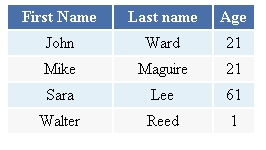
That is how you can alternate the style of rows in a table. Now if you were automatically generating this table, using PHP for example, you could have PHP set the class for you. I may do a tutorial on that in the future. I plan on showing you how to do some pretty awesome tables in the next tutorial using “Table Cloth”. Stay tuned.
