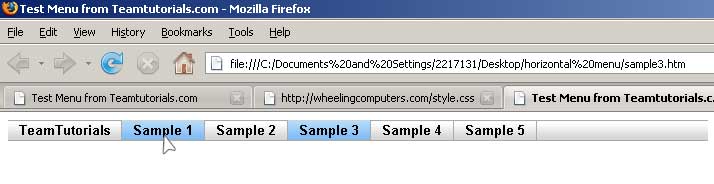
This tutorial is a little different form our standard Photoshop tutorials. Normally I would show you how to make a web layout or menu in Photoshop, but I never really went into detail on how to make the layouts work on the web. In this tutorial I will show you how to make a simple menu using Photoshop, slice the images, and how to write the code for a functional menu.
The menu I have decided to create a menu similar to the one I used on Computer Systems Solutions website.

As you can see we have a simple menu. All we really need to create are two fill images for the menu and the mouse over. So we will go into Photoshop and create a new image. I am going to make the canvas 700x100px with a white back ground.
The first we need to do is create a new layer. Then draw a 20px tall square (you can make it as large as you want, but you will have to adjust the css later on) using the marquee tool. The length doesn’t really matter and you will see why later. Fill the square with any color, since we will apply layer styles to it.

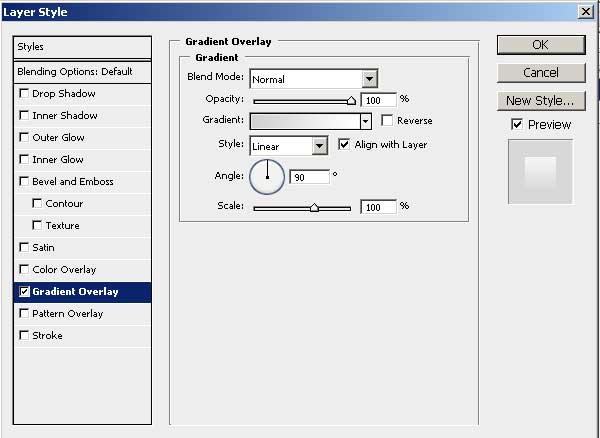
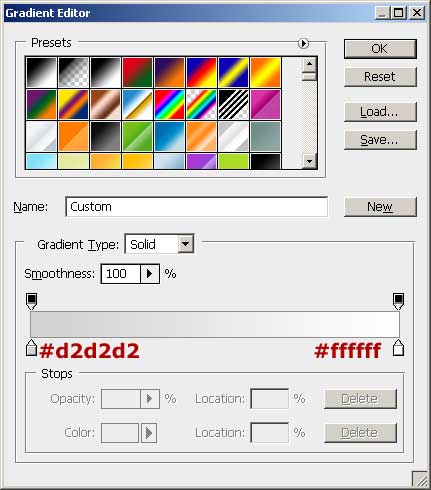
Now we can apply our layer styles. Right click on the layer and select blending options. Apply the following options.
Stroke:
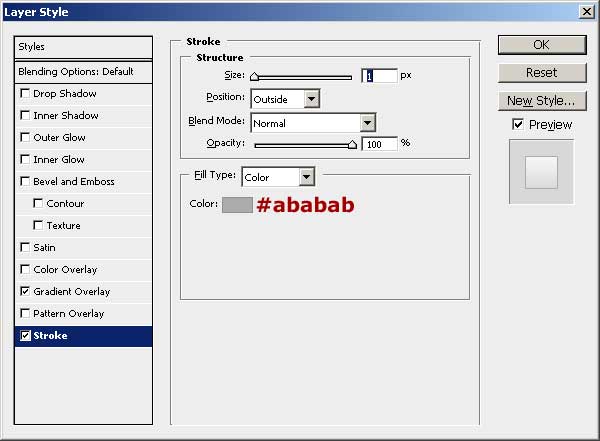
Apple the style and you have your basic menu.

Normally for a layout I would use the Photoshop slice tool for this next step, but since we are only working with one image, zoom in and make a selection that is the exact height of the menu and 1px wide like below.
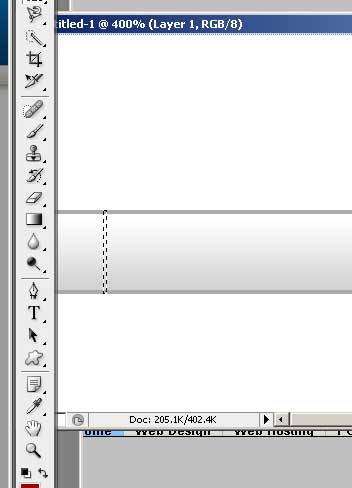
Next, on the menu in Photoshop go to Image > Crop. You should then have a 1px wide image.
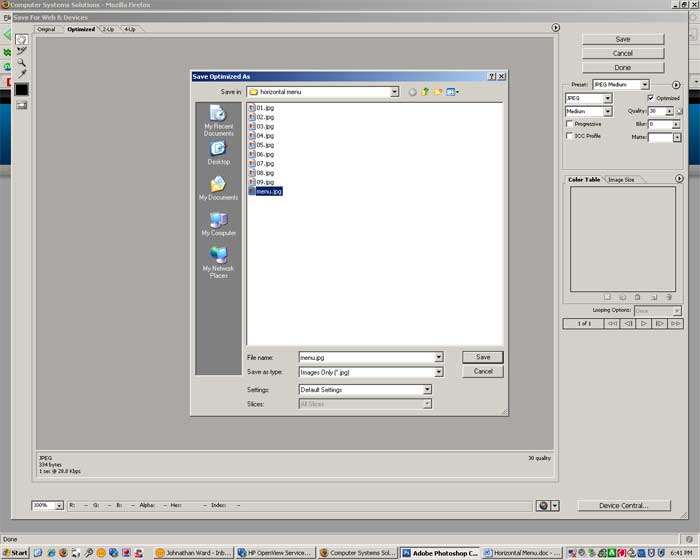
Now go to File > Save > Save Image for web and save it as menu.jpg
Now we have a background save. Next we will change the gradient to create the blue highlight when the button is hovered over. Return to the image and select the Blending Options again. Change the gradient to this color
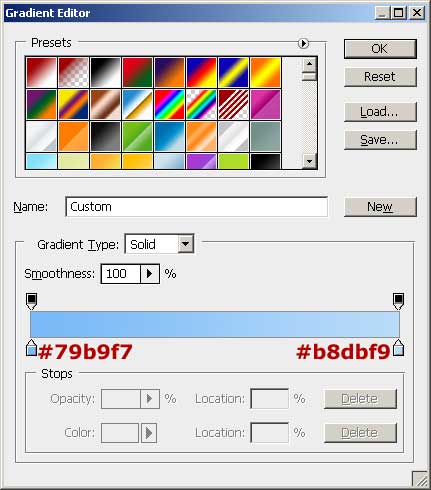
Now go to save for web again and save this one as menu-over.jpg
Now we have the two images we need to make our menu. The next step is coding the menu itself, and then applying some CSS to make it look pretty.
Open you favorite editor and and create a basic unordered list in HTML and attach a style sheet in the head section. We will use the style sheet later.
<html>
<head>
<title>Test Menu from Teamtutorials.com</title>
<style type="text/css" media="screen">
	@import url( style.css );
</style>
</head>

<body>

<ul class="solidblockmenu">
       <li><a href="#">TeamTutorials</a></li>

       <li><a href="#">Sample 1</a></li>

       <li><a href="#">Sample 2</a></li>

       <li><a href="#">Sample 3</a></li>

       <li><a href="#">Sample 4</a></li>

       <li><a href="#">Sample 5</a></li>

</ul>

</body>
</html>
As you can see the ul tag has a class of solidblockmenu. You will assign style to this element later. Save the file as test.htm and open it in your browser. It should look something like this.
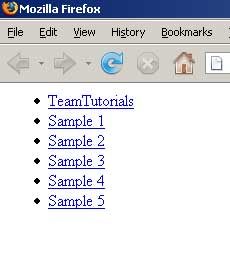
So we have a pretty basic menu. Now we can spice it up with some CSS. Open a new document in you favorite editor (I like notepad).
I will try to explain each section of the CSS the best I can using comments in the code, the full CSS source is available toward the bottom of this post.
.solidblockmenu li{
display: inline; <!-- display items as blocks-->
}
.solidblockmenu li a{ <!--styling the links-->
color: black; <!--sets font color to black-->
padding: 2px 11px; <!-- we apply padding to our links to make the buttons wider than the text-->
text-decoration: none; <!-- no style(underline, etc) for the links. -->
border-right: 1px solid #ababab; <!-- this sets the right border of the the link. It creates the divider between buttons-->
}
.solidblockmenu li a:visited{
color: black; <!--Jus changes the visite link to be black instead of the default color-->
}
.solidblockmenu li a:hover, .solidblockmenu li .current{
color: black; <!-- font color you could also change this if you want-->
background: &amp;amp;amp;amp;amp;amp;amp;amp;amp;amp;amp;amp;amp;amp;amp;amp;amp;amp;amp;amp;amp;lt;a href=&amp;amp;amp;amp;amp;amp;amp;amp;amp;amp;amp;amp;amp;amp;amp;amp;amp;amp;amp;amp;amp;quot;https://teamtutorials.com/other-tutorials/how-to-make-image-transparent-on-google-slides&amp;amp;amp;amp;amp;amp;amp;amp;amp;amp;amp;amp;amp;amp;amp;amp;amp;amp;amp;amp;amp;quot;&amp;amp;amp;amp;amp;amp;amp;amp;amp;amp;amp;amp;amp;amp;amp;amp;amp;amp;amp;amp;amp;gt;&amp;amp;amp;amp;amp;amp;amp;amp;amp;amp;amp;amp;amp;amp;amp;amp;amp;amp;amp;amp;lt;a href=&amp;amp;amp;amp;amp;amp;amp;amp;amp;amp;amp;amp;amp;amp;amp;amp;amp;amp;amp;amp;quot;https://teamtutorials.com/other-tutorials/how-to-make-an-image-transparent-on-google-slides&amp;amp;amp;amp;amp;amp;amp;amp;amp;amp;amp;amp;amp;amp;amp;amp;amp;amp;amp;amp;quot;&amp;amp;amp;amp;amp;amp;amp;amp;amp;amp;amp;amp;amp;amp;amp;amp;amp;amp;amp;amp;gt;&amp;amp;amp;amp;amp;amp;amp;amp;amp;amp;amp;amp;amp;amp;amp;amp;amp;amp;amp;lt;a href=&amp;amp;amp;amp;amp;amp;amp;amp;amp;amp;amp;amp;amp;amp;amp;amp;amp;amp;amp;quot;https://teamtutorials.com/other-tutorials/how-to-make-something-transparent-in-google-slides&amp;amp;amp;amp;amp;amp;amp;amp;amp;amp;amp;amp;amp;amp;amp;amp;amp;amp;amp;quot;&amp;amp;amp;amp;amp;amp;amp;amp;amp;amp;amp;amp;amp;amp;amp;amp;amp;amp;amp;gt;&amp;amp;amp;amp;amp;amp;amp;amp;amp;amp;amp;amp;amp;amp;amp;amp;amp;amp;lt;a href=&amp;amp;amp;amp;amp;amp;amp;amp;amp;amp;amp;amp;amp;amp;amp;amp;amp;amp;quot;https://teamtutorials.com/other-tutorials/how-to-make-picture-transparent-in-google-slides&amp;amp;amp;amp;amp;amp;amp;amp;amp;amp;amp;amp;amp;amp;amp;amp;amp;amp;quot;&amp;amp;amp;amp;amp;amp;amp;amp;amp;amp;amp;amp;amp;amp;amp;amp;amp;amp;gt;&amp;amp;amp;amp;amp;amp;amp;amp;amp;amp;amp;amp;amp;amp;amp;amp;amp;lt;a href=&amp;amp;amp;amp;amp;amp;amp;amp;amp;amp;amp;amp;amp;amp;amp;amp;amp;quot;https://teamtutorials.com/other-tutorials/how-to-make-an-image-transparent-on-google-slides&amp;amp;amp;amp;amp;amp;amp;amp;amp;amp;amp;amp;amp;amp;amp;amp;amp;quot;&amp;amp;amp;amp;amp;amp;amp;amp;amp;amp;amp;amp;amp;amp;amp;amp;amp;gt;&amp;amp;amp;amp;amp;amp;amp;amp;amp;amp;amp;amp;amp;amp;amp;amp;lt;a href=&amp;amp;amp;amp;amp;amp;amp;amp;amp;amp;amp;amp;amp;amp;amp;amp;quot;https://teamtutorials.com/other-tutorials/how-to-make-a-picture-transparent-in-google-slides&amp;amp;amp;amp;amp;amp;amp;amp;amp;amp;amp;amp;amp;amp;amp;amp;quot;&amp;amp;amp;amp;amp;amp;amp;amp;amp;amp;amp;amp;amp;amp;amp;amp;gt;&amp;amp;amp;amp;amp;amp;amp;amp;amp;amp;amp;amp;amp;amp;amp;lt;a href=&amp;amp;amp;amp;amp;amp;amp;amp;amp;amp;amp;amp;amp;amp;amp;quot;https://teamtutorials.com/other-tutorials/how-to-make-image-transparent-on-google-slides&amp;amp;amp;amp;amp;amp;amp;amp;amp;amp;amp;amp;amp;amp;amp;quot;&amp;amp;amp;amp;amp;amp;amp;amp;amp;amp;amp;amp;amp;amp;amp;gt;&amp;amp;amp;amp;amp;amp;amp;amp;amp;amp;amp;amp;amp;amp;lt;a href=&amp;amp;amp;amp;amp;amp;amp;amp;amp;amp;amp;amp;amp;amp;quot;https://teamtutorials.com/other-tutorials/how-to-make-picture-transparent-in-google-slides&amp;amp;amp;amp;amp;amp;amp;amp;amp;amp;amp;amp;amp;amp;quot;&amp;amp;amp;amp;amp;amp;amp;amp;amp;amp;amp;amp;amp;amp;gt;&amp;amp;amp;amp;amp;amp;amp;amp;amp;amp;amp;amp;amp;lt;a href=&amp;amp;amp;amp;amp;amp;amp;amp;amp;amp;amp;amp;amp;quot;https://teamtutorials.com/other-tutorials/how-to-make-an-image-transparent-on-google-slides&amp;amp;amp;amp;amp;amp;amp;amp;amp;amp;amp;amp;amp;quot;&amp;amp;amp;amp;amp;amp;amp;amp;amp;amp;amp;amp;amp;gt;&amp;amp;amp;amp;amp;amp;amp;amp;amp;amp;amp;amp;lt;a href=&amp;amp;amp;amp;amp;amp;amp;amp;amp;amp;amp;amp;quot;https://teamtutorials.com/other-tutorials/how-to-make-a-picture-transparent-in-google-slides&amp;amp;amp;amp;amp;amp;amp;amp;amp;amp;amp;amp;quot;&amp;amp;amp;amp;amp;amp;amp;amp;amp;amp;amp;amp;gt;&amp;amp;amp;amp;amp;amp;amp;amp;amp;amp;amp;lt;a href=&amp;amp;amp;amp;amp;amp;amp;amp;amp;amp;amp;quot;https://teamtutorials.com/other-tutorials/how-to-justify-text-in-powerpoint&amp;amp;amp;amp;amp;amp;amp;amp;amp;amp;amp;quot;&amp;amp;amp;amp;amp;amp;amp;amp;amp;amp;amp;gt;&amp;amp;amp;amp;amp;amp;amp;amp;amp;amp;lt;a href=&amp;amp;amp;amp;amp;amp;amp;amp;amp;amp;quot;https://teamtutorials.com/other-tutorials/how-to-make-a-picture-transparent-in-google-slides&amp;amp;amp;amp;amp;amp;amp;amp;amp;amp;quot;&amp;amp;amp;amp;amp;amp;amp;amp;amp;amp;gt;&amp;amp;amp;amp;amp;amp;amp;amp;amp;lt;a href=&amp;amp;amp;amp;amp;amp;amp;amp;amp;quot;https://teamtutorials.com/other-tutorials/how-to-make-something-transparent-in-google-slides&amp;amp;amp;amp;amp;amp;amp;amp;amp;quot;&amp;amp;amp;amp;amp;amp;amp;amp;amp;gt;&amp;amp;amp;amp;amp;amp;amp;amp;lt;a href=&amp;amp;amp;amp;amp;amp;amp;amp;quot;https://teamtutorials.com/other-tutorials/how-to-make-picture-transparent-in-google-slides&amp;amp;amp;amp;amp;amp;amp;amp;quot;&amp;amp;amp;amp;amp;amp;amp;amp;gt;&amp;amp;amp;amp;amp;amp;amp;lt;a href=&amp;amp;amp;amp;amp;amp;amp;quot;https://teamtutorials.com/other-tutorials/how-to-make-an-image-transparent-on-google-slides&amp;amp;amp;amp;amp;amp;amp;quot;&amp;amp;amp;amp;amp;amp;amp;gt;&amp;amp;amp;amp;amp;amp;lt;a href=&amp;amp;amp;amp;amp;amp;quot;https://teamtutorials.com/other-tutorials/how-to-make-a-picture-transparent-in-google-slides&amp;amp;amp;amp;amp;amp;quot;&amp;amp;amp;amp;amp;amp;gt;&amp;amp;amp;amp;amp;lt;a href=&amp;amp;amp;amp;amp;quot;https://teamtutorials.com/other-tutorials/how-to-make-something-transparent-in-google-slides&amp;amp;amp;amp;amp;quot;&amp;amp;amp;amp;amp;gt;&amp;amp;amp;amp;lt;a href=&amp;amp;amp;amp;quot;https://teamtutorials.com/other-tutorials/how-to-make-picture-transparent-in-google-slides&amp;amp;amp;amp;quot;&amp;amp;amp;amp;gt;&amp;amp;amp;lt;a href=&amp;amp;amp;quot;https://teamtutorials.com/other-tutorials/how-to-make-an-image-transparent-on-google-slides&amp;amp;amp;quot;&amp;amp;amp;gt;&amp;amp;lt;a href=&amp;amp;quot;https://teamtutorials.com/other-tutorials/how-to-make-a-picture-transparent-in-google-slides&amp;amp;quot;&amp;amp;gt;&amp;lt;a href=&amp;quot;https://teamtutorials.com/other-tutorials/how-to-make-something-transparent-in-google-slides&amp;quot;&amp;gt;&lt;a href=&quot;https://teamtutorials.com/other-tutorials/how-to-make-picture-transparent-in-google-slides&quot;&gt;<a href="https://teamtutorials.com/other-tutorials/how-to-make-an-image-transparent-on-google-slides"><a href="https://teamtutorials.com/other-tutorials/how-to-make-a-picture-transparent-in-google-slides">transparent url</a></a>&lt;/a&gt;&amp;lt;/a&amp;gt;&amp;amp;lt;/a&amp;amp;gt;&amp;amp;amp;lt;/a&amp;amp;amp;gt;&amp;amp;amp;amp;lt;/a&amp;amp;amp;amp;gt;&amp;amp;amp;amp;amp;lt;/a&amp;amp;amp;amp;amp;gt;&amp;amp;amp;amp;amp;amp;lt;/a&amp;amp;amp;amp;amp;amp;gt;&amp;amp;amp;amp;amp;amp;amp;lt;/a&amp;amp;amp;amp;amp;amp;amp;gt;&amp;amp;amp;amp;amp;amp;amp;amp;lt;/a&amp;amp;amp;amp;amp;amp;amp;amp;gt;&amp;amp;amp;amp;amp;amp;amp;amp;amp;lt;/a&amp;amp;amp;amp;amp;amp;amp;amp;amp;gt;&amp;amp;amp;amp;amp;amp;amp;amp;amp;amp;lt;/a&amp;amp;amp;amp;amp;amp;amp;amp;amp;amp;gt;&amp;amp;amp;amp;amp;amp;amp;amp;amp;amp;amp;lt;/a&amp;amp;amp;amp;amp;amp;amp;amp;amp;amp;amp;gt;&amp;amp;amp;amp;amp;amp;amp;amp;amp;amp;amp;amp;lt;/a&amp;amp;amp;amp;amp;amp;amp;amp;amp;amp;amp;amp;gt;&amp;amp;amp;amp;amp;amp;amp;amp;amp;amp;amp;amp;amp;lt;/a&amp;amp;amp;amp;amp;amp;amp;amp;amp;amp;amp;amp;amp;gt;&amp;amp;amp;amp;amp;amp;amp;amp;amp;amp;amp;amp;amp;amp;lt;/a&amp;amp;amp;amp;amp;amp;amp;amp;amp;amp;amp;amp;amp;amp;gt;&amp;amp;amp;amp;amp;amp;amp;amp;amp;amp;amp;amp;amp;amp;amp;lt;/a&amp;amp;amp;amp;amp;amp;amp;amp;amp;amp;amp;amp;amp;amp;amp;gt;&amp;amp;amp;amp;amp;amp;amp;amp;amp;amp;amp;amp;amp;amp;amp;amp;lt;/a&amp;amp;amp;amp;amp;amp;amp;amp;amp;amp;amp;amp;amp;amp;amp;amp;gt;&amp;amp;amp;amp;amp;amp;amp;amp;amp;amp;amp;amp;amp;amp;amp;amp;amp;lt;/a&amp;amp;amp;amp;amp;amp;amp;amp;amp;amp;amp;amp;amp;amp;amp;amp;amp;gt;&amp;amp;amp;amp;amp;amp;amp;amp;amp;amp;amp;amp;amp;amp;amp;amp;amp;amp;lt;/a&amp;amp;amp;amp;amp;amp;amp;amp;amp;amp;amp;amp;amp;amp;amp;amp;amp;amp;gt;&amp;amp;amp;amp;amp;amp;amp;amp;amp;amp;amp;amp;amp;amp;amp;amp;amp;amp;amp;lt;/a&amp;amp;amp;amp;amp;amp;amp;amp;amp;amp;amp;amp;amp;amp;amp;amp;amp;amp;amp;gt;&amp;amp;amp;amp;amp;amp;amp;amp;amp;amp;amp;amp;amp;amp;amp;amp;amp;amp;amp;amp;lt;/a&amp;amp;amp;amp;amp;amp;amp;amp;amp;amp;amp;amp;amp;amp;amp;amp;amp;amp;amp;amp;gt;&amp;amp;amp;amp;amp;amp;amp;amp;amp;amp;amp;amp;amp;amp;amp;amp;amp;amp;amp;amp;amp;lt;/a&amp;amp;amp;amp;amp;amp;amp;amp;amp;amp;amp;amp;amp;amp;amp;amp;amp;amp;amp;amp;amp;gt;(menu-over.jpg) center center repeat-x;&amp;amp;amp;amp;amp;amp;amp;amp;amp;amp;amp;amp;amp;amp;amp;amp;amp;amp;amp;amp;amp;amp;lt;!--this sets the link to have our menu-over.jpg ad the background when it is hovered over--&amp;amp;amp;amp;amp;amp;amp;amp;amp;amp;amp;amp;amp;amp;amp;amp;amp;amp;amp;amp;amp;amp;gt;
} }
Here is the full CSS code without comments.
.solidblockmenu{
	margin: 0;
	padding: 0;
	font: bold 13px Arial;
	width: 700px;
	height: 21px;
	background: url(menu.jpg) center center repeat-x;
}

.solidblockmenu li{
	display: inline;
}

.solidblockmenu li a{
	color: black;
	padding: 2px 11px;
	text-decoration: none;
	border-right: 1px solid #ababab;
}

.solidblockmenu li a:visited{
	color: black;
}

.solidblockmenu li a:hover, .solidblockmenu li .current{
	color: black;
	background: transparent url(menu-over.jpg) center center repeat-x;
}
Save the source code. Open the HTM file in your browser and you should have a functioning menu.
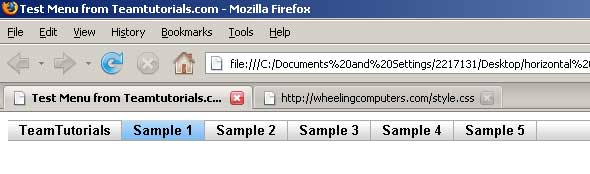
Now if you noticed in the last line of the CSS I setup a class called current. You can use that to highlight the button on the current page by default. So for example if this was the Sample3 page you would change your menu code to look like this:
&amp;amp;amp;amp;amp;amp;amp;amp;amp;amp;amp;amp;amp;amp;amp;amp;amp;amp;amp;amp;amp;amp;lt;html&amp;amp;amp;amp;amp;amp;amp;amp;amp;amp;amp;amp;amp;amp;amp;amp;amp;amp;amp;amp;amp;amp;gt;
&amp;amp;amp;amp;amp;amp;amp;amp;amp;amp;amp;amp;amp;amp;amp;amp;amp;amp;amp;amp;amp;amp;lt;head&amp;amp;amp;amp;amp;amp;amp;amp;amp;amp;amp;amp;amp;amp;amp;amp;amp;amp;amp;amp;amp;amp;gt;
&amp;amp;amp;amp;amp;amp;amp;amp;amp;amp;amp;amp;amp;amp;amp;amp;amp;amp;amp;amp;amp;amp;lt;title&amp;amp;amp;amp;amp;amp;amp;amp;amp;amp;amp;amp;amp;amp;amp;amp;amp;amp;amp;amp;amp;amp;gt;Test Menu from Teamtutorials.com&amp;amp;amp;amp;amp;amp;amp;amp;amp;amp;amp;amp;amp;amp;amp;amp;amp;amp;amp;amp;amp;amp;lt;/title&amp;amp;amp;amp;amp;amp;amp;amp;amp;amp;amp;amp;amp;amp;amp;amp;amp;amp;amp;amp;amp;amp;gt;
&amp;amp;amp;amp;amp;amp;amp;amp;amp;amp;amp;amp;amp;amp;amp;amp;amp;amp;amp;amp;amp;amp;lt;style type=&amp;amp;amp;amp;amp;amp;amp;amp;amp;amp;amp;amp;amp;amp;amp;amp;amp;amp;amp;amp;amp;amp;quot;text/css&amp;amp;amp;amp;amp;amp;amp;amp;amp;amp;amp;amp;amp;amp;amp;amp;amp;amp;amp;amp;amp;amp;quot; media=&amp;amp;amp;amp;amp;amp;amp;amp;amp;amp;amp;amp;amp;amp;amp;amp;amp;amp;amp;amp;amp;amp;quot;screen&amp;amp;amp;amp;amp;amp;amp;amp;amp;amp;amp;amp;amp;amp;amp;amp;amp;amp;amp;amp;amp;amp;quot;&amp;amp;amp;amp;amp;amp;amp;amp;amp;amp;amp;amp;amp;amp;amp;amp;amp;amp;amp;amp;amp;amp;gt;
@import url( style.css );
&amp;amp;amp;amp;amp;amp;amp;amp;amp;amp;amp;amp;amp;amp;amp;amp;amp;amp;amp;amp;amp;amp;lt;/style&amp;amp;amp;amp;amp;amp;amp;amp;amp;amp;amp;amp;amp;amp;amp;amp;amp;amp;amp;amp;amp;amp;gt;
&amp;amp;amp;amp;amp;amp;amp;amp;amp;amp;amp;amp;amp;amp;amp;amp;amp;amp;amp;amp;amp;amp;lt;/head&amp;amp;amp;amp;amp;amp;amp;amp;amp;amp;amp;amp;amp;amp;amp;amp;amp;amp;amp;amp;amp;amp;gt;
&amp;amp;amp;amp;amp;amp;amp;amp;amp;amp;amp;amp;amp;amp;amp;amp;amp;amp;amp;amp;amp;amp;lt;body&amp;amp;amp;amp;amp;amp;amp;amp;amp;amp;amp;amp;amp;amp;amp;amp;amp;amp;amp;amp;amp;amp;gt;
&amp;amp;amp;amp;amp;amp;amp;amp;amp;amp;amp;amp;amp;amp;amp;amp;amp;amp;amp;amp;amp;amp;lt;ul class=&amp;amp;amp;amp;amp;amp;amp;amp;amp;amp;amp;amp;amp;amp;amp;amp;amp;amp;amp;amp;amp;amp;quot;solidblockmenu&amp;amp;amp;amp;amp;amp;amp;amp;amp;amp;amp;amp;amp;amp;amp;amp;amp;amp;amp;amp;amp;amp;quot;&amp;amp;amp;amp;amp;amp;amp;amp;amp;amp;amp;amp;amp;amp;amp;amp;amp;amp;amp;amp;amp;amp;gt;
&amp;amp;amp;amp;amp;amp;amp;amp;amp;amp;amp;amp;amp;amp;amp;amp;amp;amp;amp;amp;amp;amp;lt;li&amp;amp;amp;amp;amp;amp;amp;amp;amp;amp;amp;amp;amp;amp;amp;amp;amp;amp;amp;amp;amp;amp;gt;&amp;amp;amp;amp;amp;amp;amp;amp;amp;amp;amp;amp;amp;amp;amp;amp;amp;amp;amp;amp;amp;amp;lt;a href=&amp;amp;amp;amp;amp;amp;amp;amp;amp;amp;amp;amp;amp;amp;amp;amp;amp;amp;amp;amp;amp;amp;quot;#&amp;amp;amp;amp;amp;amp;amp;amp;amp;amp;amp;amp;amp;amp;amp;amp;amp;amp;amp;amp;amp;amp;quot;&amp;amp;amp;amp;amp;amp;amp;amp;amp;amp;amp;amp;amp;amp;amp;amp;amp;amp;amp;amp;amp;amp;gt;TeamTutorials&amp;amp;amp;amp;amp;amp;amp;amp;amp;amp;amp;amp;amp;amp;amp;amp;amp;amp;amp;amp;amp;amp;lt;/a&amp;amp;amp;amp;amp;amp;amp;amp;amp;amp;amp;amp;amp;amp;amp;amp;amp;amp;amp;amp;amp;amp;gt;&amp;amp;amp;amp;amp;amp;amp;amp;amp;amp;amp;amp;amp;amp;amp;amp;amp;amp;amp;amp;amp;amp;lt;/li&amp;amp;amp;amp;amp;amp;amp;amp;amp;amp;amp;amp;amp;amp;amp;amp;amp;amp;amp;amp;amp;amp;gt;
&amp;amp;amp;amp;amp;amp;amp;amp;amp;amp;amp;amp;amp;amp;amp;amp;amp;amp;amp;amp;amp;amp;lt;li&amp;amp;amp;amp;amp;amp;amp;amp;amp;amp;amp;amp;amp;amp;amp;amp;amp;amp;amp;amp;amp;amp;gt;&amp;amp;amp;amp;amp;amp;amp;amp;amp;amp;amp;amp;amp;amp;amp;amp;amp;amp;amp;amp;amp;amp;lt;a href=&amp;amp;amp;amp;amp;amp;amp;amp;amp;amp;amp;amp;amp;amp;amp;amp;amp;amp;amp;amp;amp;amp;quot;#&amp;amp;amp;amp;amp;amp;amp;amp;amp;amp;amp;amp;amp;amp;amp;amp;amp;amp;amp;amp;amp;amp;quot;&amp;amp;amp;amp;amp;amp;amp;amp;amp;amp;amp;amp;amp;amp;amp;amp;amp;amp;amp;amp;amp;amp;gt;Sample 1&amp;amp;amp;amp;amp;amp;amp;amp;amp;amp;amp;amp;amp;amp;amp;amp;amp;amp;amp;amp;amp;amp;lt;/a&amp;amp;amp;amp;amp;amp;amp;amp;amp;amp;amp;amp;amp;amp;amp;amp;amp;amp;amp;amp;amp;amp;gt;&amp;amp;amp;amp;amp;amp;amp;amp;amp;amp;amp;amp;amp;amp;amp;amp;amp;amp;amp;amp;amp;amp;lt;/li&amp;amp;amp;amp;amp;amp;amp;amp;amp;amp;amp;amp;amp;amp;amp;amp;amp;amp;amp;amp;amp;amp;gt;
&amp;amp;amp;amp;amp;amp;amp;amp;amp;amp;amp;amp;amp;amp;amp;amp;amp;amp;amp;amp;amp;amp;lt;li&amp;amp;amp;amp;amp;amp;amp;amp;amp;amp;amp;amp;amp;amp;amp;amp;amp;amp;amp;amp;amp;amp;gt;&amp;amp;amp;amp;amp;amp;amp;amp;amp;amp;amp;amp;amp;amp;amp;amp;amp;amp;amp;amp;amp;amp;lt;a href=&amp;amp;amp;amp;amp;amp;amp;amp;amp;amp;amp;amp;amp;amp;amp;amp;amp;amp;amp;amp;amp;amp;quot;#&amp;amp;amp;amp;amp;amp;amp;amp;amp;amp;amp;amp;amp;amp;amp;amp;amp;amp;amp;amp;amp;amp;quot;&amp;amp;amp;amp;amp;amp;amp;amp;amp;amp;amp;amp;amp;amp;amp;amp;amp;amp;amp;amp;amp;amp;gt;Sample 2&amp;amp;amp;amp;amp;amp;amp;amp;amp;amp;amp;amp;amp;amp;amp;amp;amp;amp;amp;amp;amp;amp;lt;/a&amp;amp;amp;amp;amp;amp;amp;amp;amp;amp;amp;amp;amp;amp;amp;amp;amp;amp;amp;amp;amp;amp;gt;&amp;amp;amp;amp;amp;amp;amp;amp;amp;amp;amp;amp;amp;amp;amp;amp;amp;amp;amp;amp;amp;amp;lt;/li&amp;amp;amp;amp;amp;amp;amp;amp;amp;amp;amp;amp;amp;amp;amp;amp;amp;amp;amp;amp;amp;amp;gt;
&amp;amp;amp;amp;amp;amp;amp;amp;amp;amp;amp;amp;amp;amp;amp;amp;amp;amp;amp;amp;amp;amp;lt;li&amp;amp;amp;amp;amp;amp;amp;amp;amp;amp;amp;amp;amp;amp;amp;amp;amp;amp;amp;amp;amp;amp;gt;&amp;amp;amp;amp;amp;amp;amp;amp;amp;amp;amp;amp;amp;amp;amp;amp;amp;amp;amp;amp;amp;amp;lt;a href=&amp;amp;amp;amp;amp;amp;amp;amp;amp;amp;amp;amp;amp;amp;amp;amp;amp;amp;amp;amp;amp;amp;quot;#&amp;amp;amp;amp;amp;amp;amp;amp;amp;amp;amp;amp;amp;amp;amp;amp;amp;amp;amp;amp;amp;amp;quot; class=”current”&amp;amp;amp;amp;amp;amp;amp;amp;amp;amp;amp;amp;amp;amp;amp;amp;amp;amp;amp;amp;amp;amp;gt;Sample 3&amp;amp;amp;amp;amp;amp;amp;amp;amp;amp;amp;amp;amp;amp;amp;amp;amp;amp;amp;amp;amp;amp;lt;/a&amp;amp;amp;amp;amp;amp;amp;amp;amp;amp;amp;amp;amp;amp;amp;amp;amp;amp;amp;amp;amp;amp;gt;&amp;amp;amp;amp;amp;amp;amp;amp;amp;amp;amp;amp;amp;amp;amp;amp;amp;amp;amp;amp;amp;amp;lt;/li&amp;amp;amp;amp;amp;amp;amp;amp;amp;amp;amp;amp;amp;amp;amp;amp;amp;amp;amp;amp;amp;amp;gt;
&amp;amp;amp;amp;amp;amp;amp;amp;amp;amp;amp;amp;amp;amp;amp;amp;amp;amp;amp;amp;amp;amp;lt;li&amp;amp;amp;amp;amp;amp;amp;amp;amp;amp;amp;amp;amp;amp;amp;amp;amp;amp;amp;amp;amp;amp;gt;&amp;amp;amp;amp;amp;amp;amp;amp;amp;amp;amp;amp;amp;amp;amp;amp;amp;amp;amp;amp;amp;amp;lt;a href=&amp;amp;amp;amp;amp;amp;amp;amp;amp;amp;amp;amp;amp;amp;amp;amp;amp;amp;amp;amp;amp;amp;quot;#&amp;amp;amp;amp;amp;amp;amp;amp;amp;amp;amp;amp;amp;amp;amp;amp;amp;amp;amp;amp;amp;amp;quot;&amp;amp;amp;amp;amp;amp;amp;amp;amp;amp;amp;amp;amp;amp;amp;amp;amp;amp;amp;amp;amp;amp;gt;Sample 4&amp;amp;amp;amp;amp;amp;amp;amp;amp;amp;amp;amp;amp;amp;amp;amp;amp;amp;amp;amp;amp;amp;lt;/a&amp;amp;amp;amp;amp;amp;amp;amp;amp;amp;amp;amp;amp;amp;amp;amp;amp;amp;amp;amp;amp;amp;gt;&amp;amp;amp;amp;amp;amp;amp;amp;amp;amp;amp;amp;amp;amp;amp;amp;amp;amp;amp;amp;amp;amp;lt;/li&amp;amp;amp;amp;amp;amp;amp;amp;amp;amp;amp;amp;amp;amp;amp;amp;amp;amp;amp;amp;amp;amp;gt;
&amp;amp;amp;amp;amp;amp;amp;amp;amp;amp;amp;amp;amp;amp;amp;amp;amp;amp;amp;amp;amp;amp;lt;li&amp;amp;amp;amp;amp;amp;amp;amp;amp;amp;amp;amp;amp;amp;amp;amp;amp;amp;amp;amp;amp;amp;gt;&amp;amp;amp;amp;amp;amp;amp;amp;amp;amp;amp;amp;amp;amp;amp;amp;amp;amp;amp;amp;amp;amp;lt;a href=&amp;amp;amp;amp;amp;amp;amp;amp;amp;amp;amp;amp;amp;amp;amp;amp;amp;amp;amp;amp;amp;amp;quot;#&amp;amp;amp;amp;amp;amp;amp;amp;amp;amp;amp;amp;amp;amp;amp;amp;amp;amp;amp;amp;amp;amp;quot;&amp;amp;amp;amp;amp;amp;amp;amp;amp;amp;amp;amp;amp;amp;amp;amp;amp;amp;amp;amp;amp;amp;gt;Sample 5&amp;amp;amp;amp;amp;amp;amp;amp;amp;amp;amp;amp;amp;amp;amp;amp;amp;amp;amp;amp;amp;amp;lt;/a&amp;amp;amp;amp;amp;amp;amp;amp;amp;amp;amp;amp;amp;amp;amp;amp;amp;amp;amp;amp;amp;amp;gt;&amp;amp;amp;amp;amp;amp;amp;amp;amp;amp;amp;amp;amp;amp;amp;amp;amp;amp;amp;amp;amp;amp;lt;/li&amp;amp;amp;amp;amp;amp;amp;amp;amp;amp;amp;amp;amp;amp;amp;amp;amp;amp;amp;amp;amp;amp;gt;
&amp;amp;amp;amp;amp;amp;amp;amp;amp;amp;amp;amp;amp;amp;amp;amp;amp;amp;amp;amp;amp;amp;lt;/ul&amp;amp;amp;amp;amp;amp;amp;amp;amp;amp;amp;amp;amp;amp;amp;amp;amp;amp;amp;amp;amp;amp;gt;
&amp;amp;amp;amp;amp;amp;amp;amp;amp;amp;amp;amp;amp;amp;amp;amp;amp;amp;amp;amp;amp;amp;lt;/body&amp;amp;amp;amp;amp;amp;amp;amp;amp;amp;amp;amp;amp;amp;amp;amp;amp;amp;amp;amp;amp;amp;gt;
&amp;amp;amp;amp;amp;amp;amp;amp;amp;amp;amp;amp;amp;amp;amp;amp;amp;amp;amp;amp;amp;amp;lt;/html&amp;amp;amp;amp;amp;amp;amp;amp;amp;amp;amp;amp;amp;amp;amp;amp;amp;amp;amp;amp;amp;amp;gt;
Then Sample 3 would be blue, but the other options would still highlight when you hover over them.